Tuples

Tuple is a collection which contains items that can be ordered and will allow duplicate items.

Tuples can’t be changeable and it is written within round brackets.

Example:

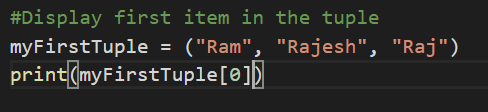
This above example defines tuple named myFirstTuple.

Accessing tuple items is similar to accessing list items using indexes.

Example:

Output:

Since, Tuple is non-changeable, we can’t add items to Tuple. Let’s see what happens when we try to add items in a Tuple.
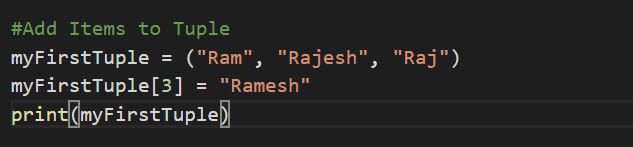
Output:

We get an error whenever we are try to add any new values. The error message clearly indicates that “Tuple” object does not support item assignment.

Similarly, deletion of items is also not possible via Tuples.

There are two methods called count() and index() associated with Tuples.

Count can be used in Tuples and it eturns the number of times a specified value occurs in a tuple.

Example:
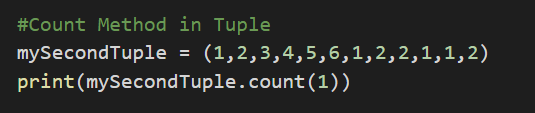
Output:

As you can see in the above example, 1 is added 4 times in the tuple and hence, when we pass 1 to the count method, it displays 4.

Let’s see what it displays when we pass 2.

Example:

Output:

Index method: This method searches for the first occurrence of the value, and return its position.

Example:

Output: The index method takes 3 as a parameter and displays the first index of the tuple. Hence, the output is 2 which means that the number 3 is present in the 2nd index of the tuple.


Data Type – List

List is a collection which contains objects or items that can be changed and ordered.

Note: List can allow duplicate members.

Below is the sample code which creates the list name “firstList” and displays the list.

In Python, lists are written inside a square bracket.

Python Lists

When we print the list, we get the below output:

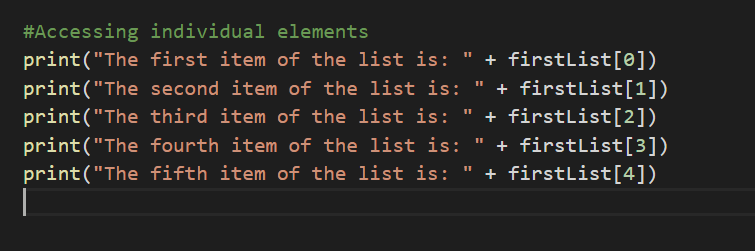
To access individual items, we use indexes. Index starts with zero. First Item is always accessed from 0.

The items of “firstList” can be accessed as shown below.

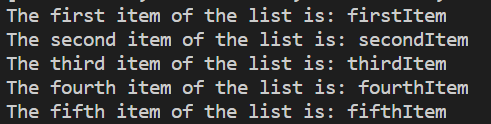
Output of the above code is:

Negative Indexes

This is an unique concept. Can the items be accessed via negative indexes?

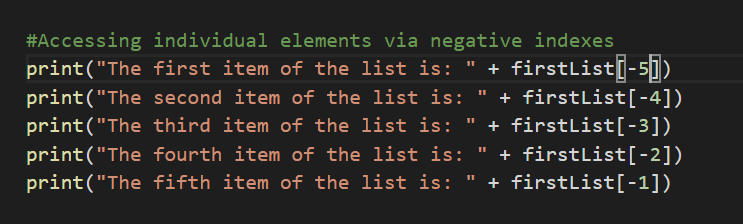
Yes. It can be accessed via negative indexes. Negative Index starts from -1. -1 displays last item. -2 displays second last item.

Likewise, more the negative value the corresponding items will be displayed.

Example:


Range

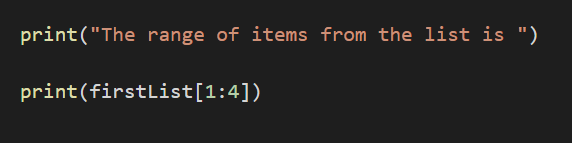
The items in the list can be retrieved based on the ranges.

Example:


Output:

Please note that range will return the items mentioned between the first number and the second number.

In the above example, it will display items from the range of 1 till 4th Item. Here, indexes starts with zero.

Hence, [‘secondItem’,’thirdItem’,’fourthItem’] are displayed however the last item i.e., the item in the 4th index will not be displayed.

Range will still work if we give just the start item index or the last item index.

Example:

Output:

This will display all the items from the start index i.e., 0 index till 3rd index.

Example:

Similarly, let’s see what happens if the last index is not mentioned.

Output:

Complex Number

A Complex number is a combination of real number and an imaginary number.

For example: 3 + 2i –> This is a complex number in which 3 is the real number and 2i is the imaginary number.

i –> is the imaginary number that is imagined as the square root of -1 i.e., √-1.

Below are few examples of complex numbers:

  1. 3i
  2. -4.3i
  3. 57i
  4. 43i/4

i is the imaginary number that depicts that it should be multiplied by √-1.

Complex number is a number which is dependent on two numbers. One number is a real number and the other number is the imaginary number.

Say for example, 2 x 3 = 6, here 6 is dependent on two numbers 2 and 3.

Likewise, complex number is also a number that is dependent on two numbers for which the value of one number is known whereas the value of the other number is unknown.

Complex NumberReal PartImaginary Part
6 + 5i 6 5
2 5 0
−9i 0 -9

The above table gives a clear understanding on the understanding of complex numbers.

Now, we have a basic understanding of complex numbers. Let’s get back to Python.

Data Types

Datatypes are common concepts across every language. The data that is stored in a variable determines the data types.

For Example: a variable that stores a text has string as a data type, similarly, variable storing number has int, float or complex as data type depending on the complexity of the number.

Let’s understand few data types here:

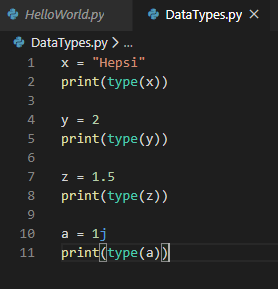
Let’s create a new file DataTypes.py file.

In Line number 1, we have created a variable ‘x‘ which is assigned with value “Hepsi” which is a string.

The datatypes of variable can be known by using type() function.

In Line number 2, we are printing the type of ‘x‘ variable using type() function which takes one variable as the argument.

Similarly, in Line number 4, we have created a variable ‘y’ which is assigned with value 2 which is a number or integer.

In Line number 5, we are print the type of ‘y’ variable using type() function which takes one variable as the argument.

Similarly, in Line number 7, we have created a variable ‘z’ which is assigned with value 1.5 which is a floating number.

In Line number 8, we are print the type of ‘z‘ variable using type() function which takes one variable as the argument.

Similarly, in Line number 10, we have created a variable ‘a’ which is assigned with value 1j which is a complex number.

In Line number 11, we are print the type of ‘a‘ variable using type() function which takes one variable as the argument.

Let’s see what is the output by hitting the run button:

The output clearly shows that we have created a string variable i.e., x , integer variable i.e., y , float variable i.e., z and a complex variable i.e., a.

Before proceeding further, let’s see what is a complex number in the next post.

Comments in Python

Comments are statements that is written inside a code which is used mostly for adding the note about the code.

Comments doesn’t gets executed. It is basically ignored by the compiler.

Comments are added to increase the code readability and maintainability.

There are specific syntax that needs to be followed to write comments.

Single line comment as well as multi line comments can be added.

Let’s see how to add a single line comment

Example:

In the above example, in line no 1, the sentence starts with ‘#‘ symbol which says that it is a comment.

When we run this piece of code, we will see only “Hello World from Python” as the first statement is completely ignored by the interpreter considering it as a comment.

Output:

Comments can also be written in the same line as of the code as shown below which would give the same result.

Example:

Multi-line comments

Comments can flow into multiple lines. There is no specific syntax for multi-line comments. We need to preced with # for every single line as shown below.

The alternate way to add multi line comment is to use multi line strings as Python will ignore string literals that are not assigned to any variable.

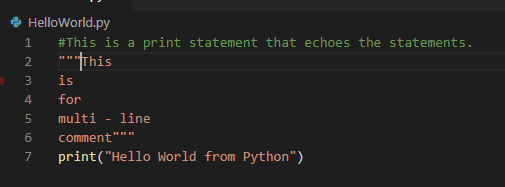
We can use string literal i.e., triple quotes to write multi line comments as shown below.

The interpreter would ignore the lines from line no 2 till line no 6 since it is not assigned to any variable and can be used for adding multi line comments.

Variables in Python

Variable creation in Python is very much similar to the other programming languages. However, there are few notable differences.

  1. Variables are created only when it is assigned with a value. There is no concept of declaration.
  2. Variables type are determined only when it is assigned with a value. Type is optional while creating variables. 
  3. Types can be changed after assigning the value for the variables by assigning it with the data of different type.

Below are the rules that has to be followed while creating variables which is very much similar to the rules that is followed in another programming languages.

  1. A variable name must start with a letter or the underscore character.
  2. A variable name cannot start with a number
  3. A variable name can only contain alpha-numeric characters and underscores (A-z, 0-9, and _ )
  4. Variable names are case-sensitive (name, Name and NAME are three different variables)

Let’s start by creating few variables.

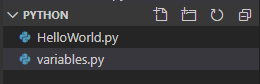
Create a new file and name it as “variables.py

Add the code as shown and click the “run” button.

Code:

Output:

We have created a variable named “x” and we are printing the variable “x“.

As mentioned earlier, types of a variable can be changed after assigning the value with the data of different type

Let’s understand it with an  example by reusing the same file created earlier.

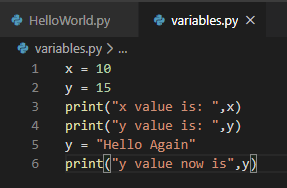
Code:

A variable named “y” is created and assigned with a value of 15 which is an integer.

In the line number 5, again the same variable “y” is assigned with a value of “Hello Again” which is a string.

This will not throw any error during compile time nor run time.

Output:

Indentation in Python

Indentation plays a major role in Python. Let’s see with example.

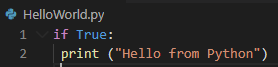
Here is a sample code of if block without space:

This says to print “Hello from Python” whenever it executes and both the code statements are aligned to each other.

The Python interpreter will not know that the print statement should be executed whenever the if condition satisfies unless or until there is some space for the interpreter to understand.

At least, there should be one space for the interpreter to understand that the print statement actually falls under if block.

In the above code, interpreter would execute the statement 1 (i.e., if (true)) and recognize the if block and would anticipate for the code statements within if block. So, it would expect a space. If it wouldn’t find space, it would throw an error.

Below is the output, when the above code is executed.

It gives us an error saying, “Expected an indented block”.

Now let’s give one space and see what happens.

Code:                                                                                                                                                                                                                                           

Output:

I have given only one space as indentation. The same indentation needs to be followed throughout the if block.

For Example: As shown in the code sample, if there are multiple statements inside if block, all should follow the same indentation. If one statement has different indentation than the other statements, inside the same code block, it would throw an error.

Example:

In this code, second print statement’s indentation is not aligned with the first print statement. Hence, we get unexpected indent error.

Output:

If we want to print the second statement, outside the if block, we need to write it without any space as shown below:

Example:

Output:

Hope this gives a better overview on the indentation aspect in Python. Let’s continue with the other topic in next post.

Hello World from Python

  1. Create Project via PyCharm

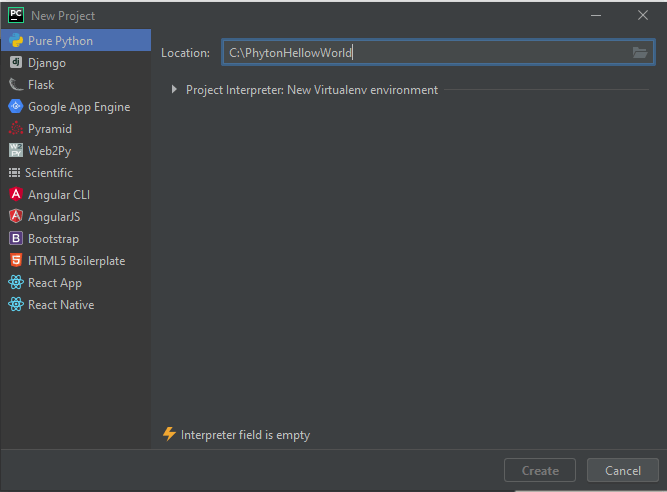
Open PyCharm and click on “Click New Project

Specify the location of the project.

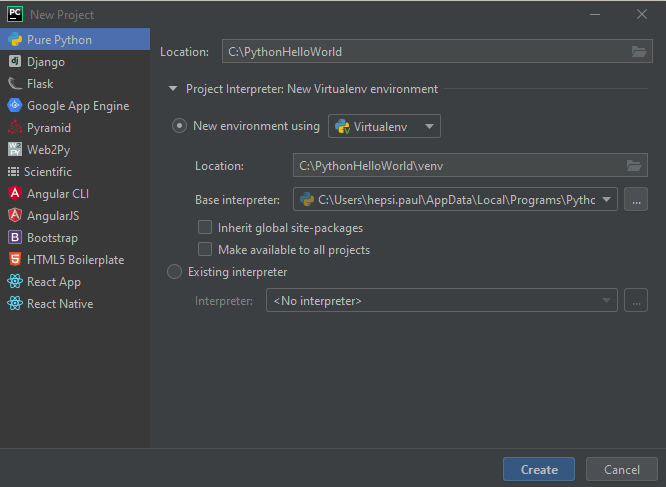
Click on “Project Interpreter” settings, it will automatically populate the values of the interpreter and then click “Create“.

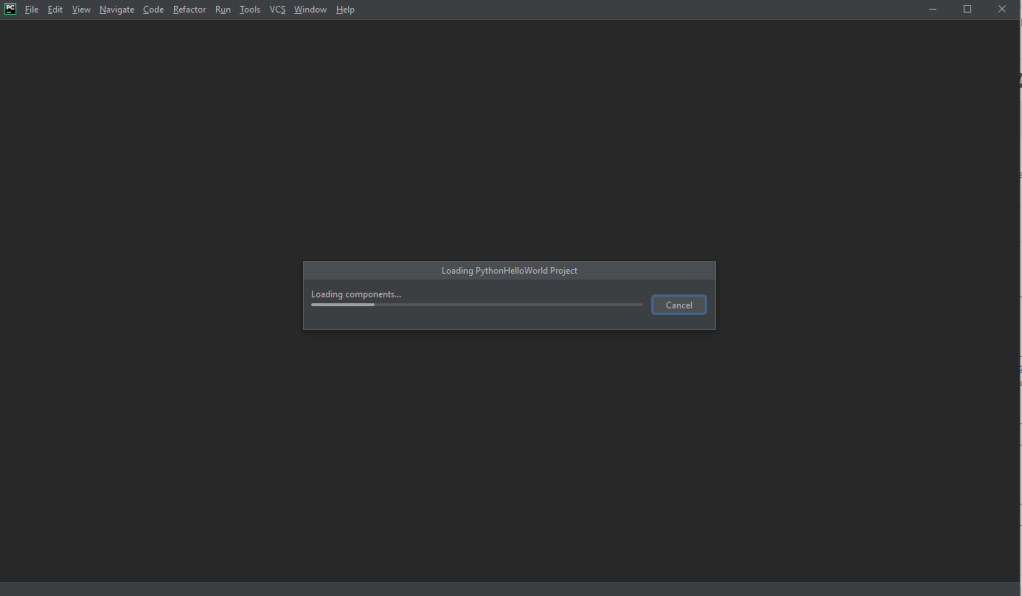
The project will be created as shown.

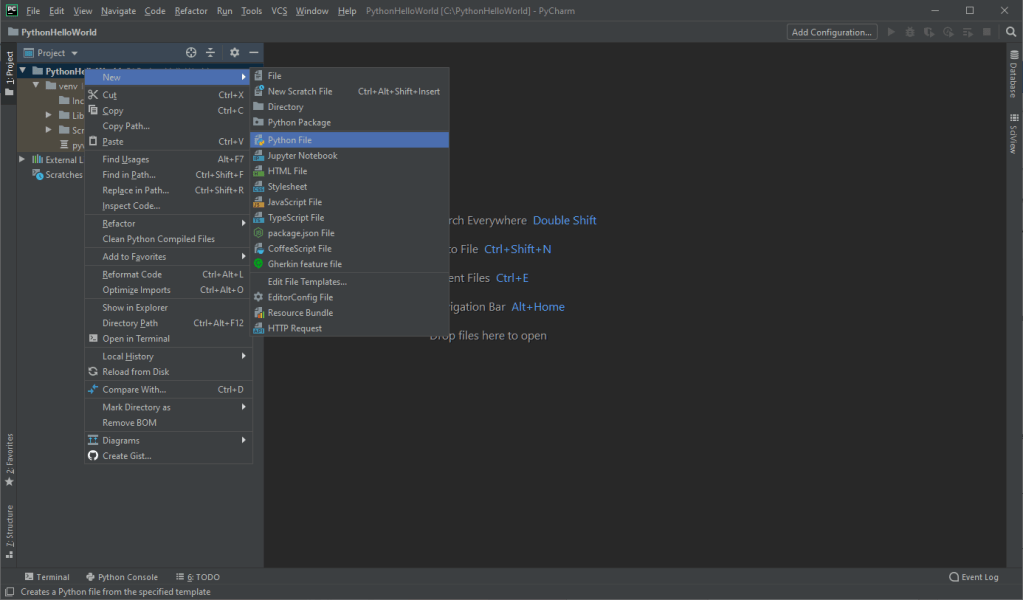
Once the project is created, right click on the project name, select new and select “Python File

Give the name of the file as “HelloWorld“. Automatically HelloWorld.py file will be created.

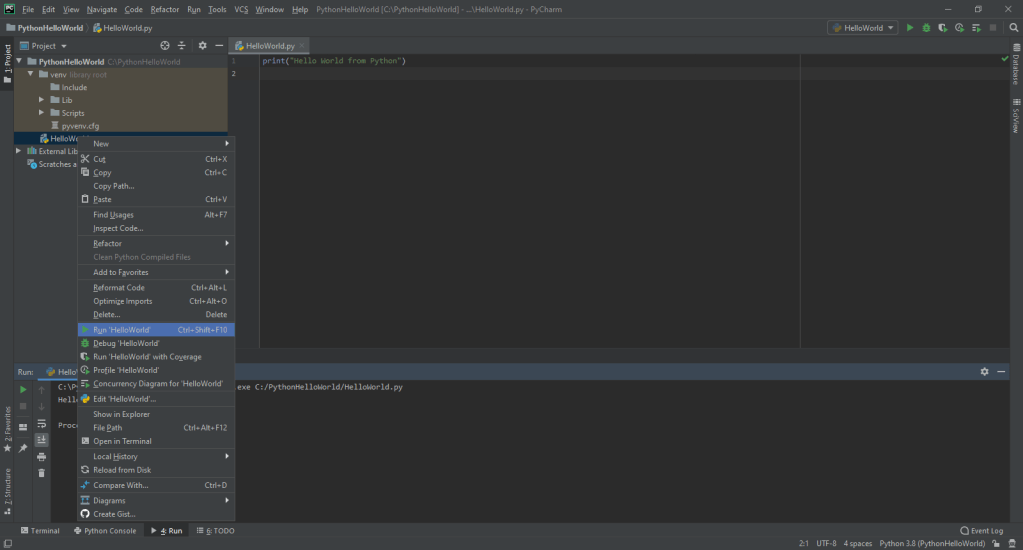
Now just type, Print(“Hello World from Python” and right click the file, and select “Run Hello World in terminal

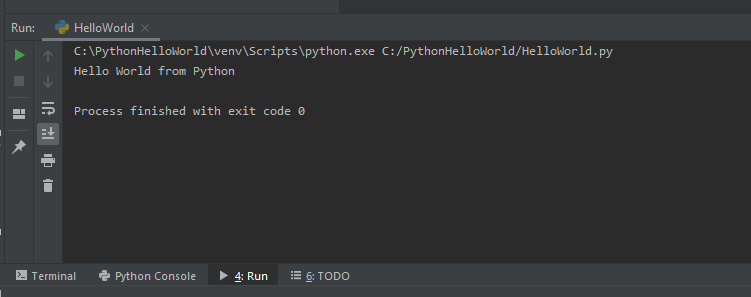
In the terminal, you can see the message that is written inside the print statement.

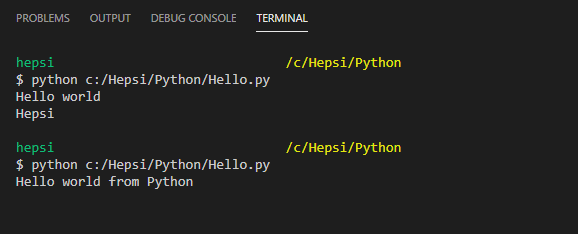
Similarly, in Visual studio code, create a project and click on “Run” button.

You can see the output of the program in the terminal as shown below.

We have successfully created our first program in PYTHON.

Python via Visual Studio Code

Visual studio code is free and available for all type of Operating System.

First step would be to install visual studio code.

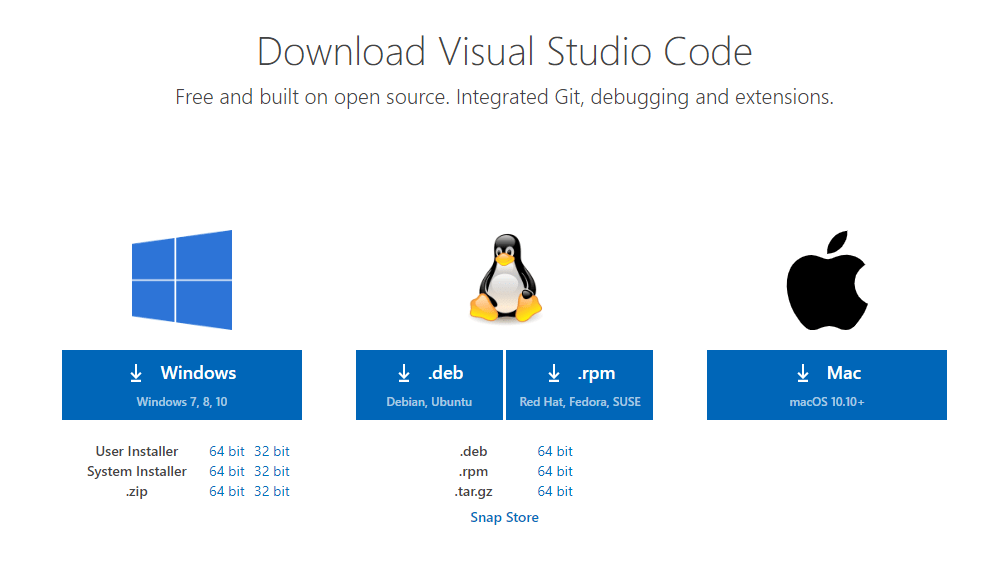
  1. Download visual studio code from the link below and click on the corresponding button based on your Operating System. https://code.visualstudio.com/download

I am downloading the windows installer. An .exe file like shown below will be downloaded.

2. Double click the installer, and install the Visual studio code.

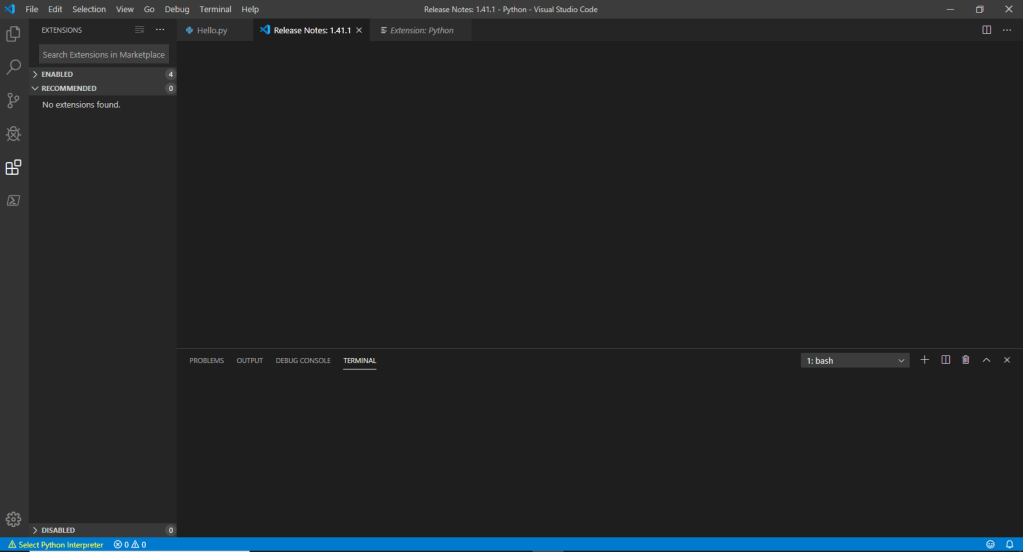
3. Once, the installation is complete, you can open Visual studio code which is something similar like below.

4. Once, this is done, we need to enable Visual studio code such that we can create Python files.

We should have python installed in the machine. To install python, please check my previous post.

5. After installing python, in the Visual studio code, click on “Extensions” and search for Python.

6. Select the first extension that is shown above and click on “Install” button.

7. Now we are done, setting up both PyCharm and Visual studio Code so that we can start creating Python code.

Check my next post on creating our first Python program.

References for this post:

https://code.visualstudio.com/docs/python/python-tutorial

https://marketplace.visualstudio.com/items?itemName=ms-python.python

https://www.python.org/downloads/

https://code.visualstudio.com/docs/python/environments

https://code.visualstudio.com/docs/languages/python

Install Pycharm

Pycharm can be downloaded from here.

https://www.jetbrains.com/pycharm/download/#section=windows

We have two variations of “Pycharm” available for download.

Professional version – Which supports web development with HTML , JS and SQL support, which is available as free trial and have to upgrade after the free trial period expires.

Community version – Which supports only pure python development which is free and open source.

You can download any one to start learning PYTHON.

I am downloading “Professional Version” and pycharm-professional-2019.3.1.exe file will be downloaded.

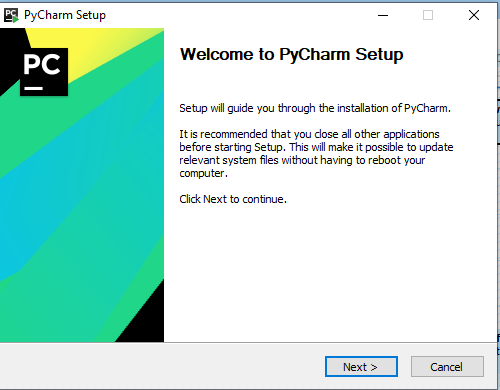
Double click the .exe file, to start the installation process.

Click “Next” button to continue.

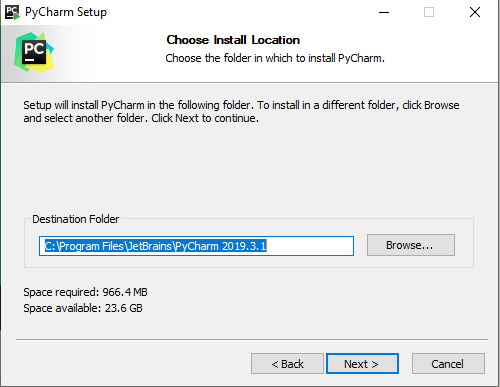
Click “Next” again if you are okay to install the PyCharm in the mentioned path.

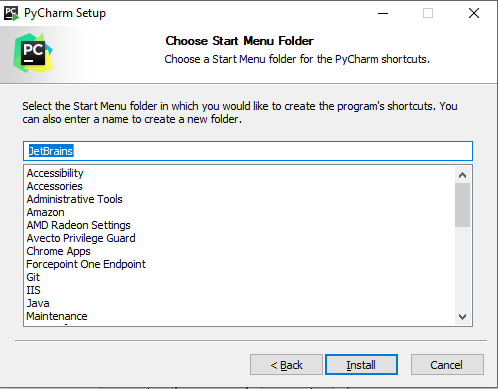
Select the check boxes as shown above and click “Next” and click “Install” to install PyCharm.

The installation process will continue.

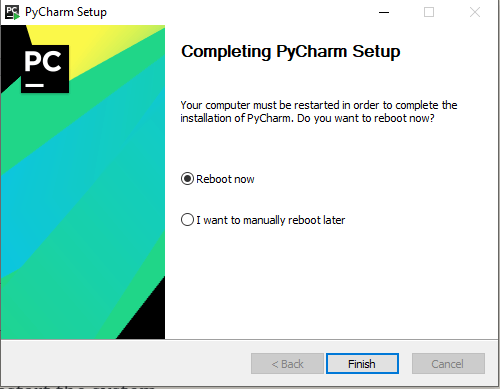
Once the installation is done, restart the system.

After restarting the machine, open PyCharm.

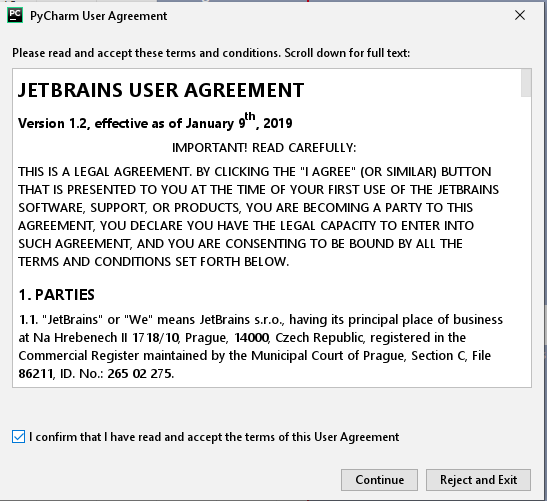
When opened for the first time, PyCharm displays an user agreement that we need to agree to.


Click “Continue” which would open PyCharm.

Design a site like this with WordPress.com
Get started