Pycharm can be downloaded from here.
https://www.jetbrains.com/pycharm/download/#section=windows

We have two variations of “Pycharm” available for download.
Professional version – Which supports web development with HTML , JS and SQL support, which is available as free trial and have to upgrade after the free trial period expires.
Community version – Which supports only pure python development which is free and open source.
You can download any one to start learning PYTHON.
I am downloading “Professional Version” and pycharm-professional-2019.3.1.exe file will be downloaded.

Double click the .exe file, to start the installation process.
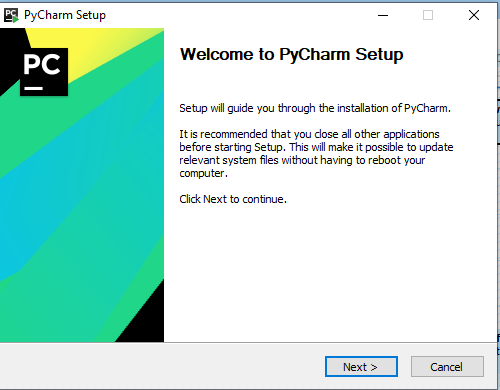
Click “Next” button to continue.
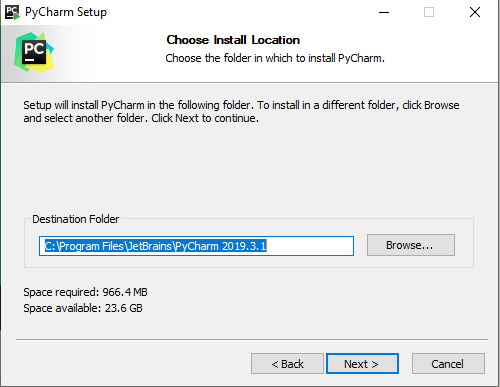
Click “Next” again if you are okay to install the PyCharm in the mentioned path.

Select the check boxes as shown above and click “Next” and click “Install” to install PyCharm.
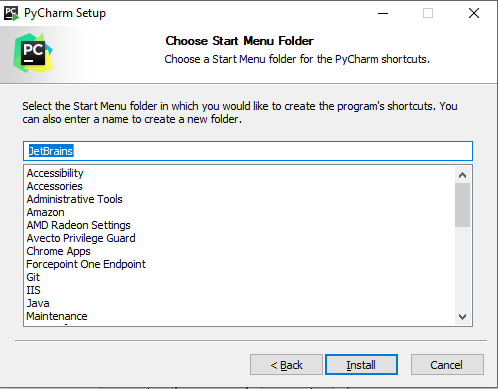
The installation process will continue.

Once the installation is done, restart the system.
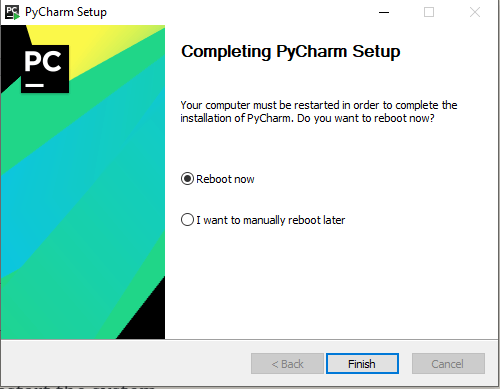
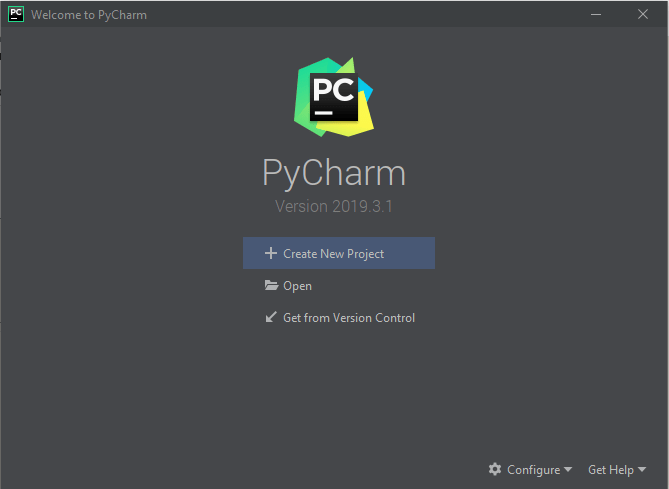
After restarting the machine, open PyCharm.
When opened for the first time, PyCharm displays an user agreement that we need to agree to.
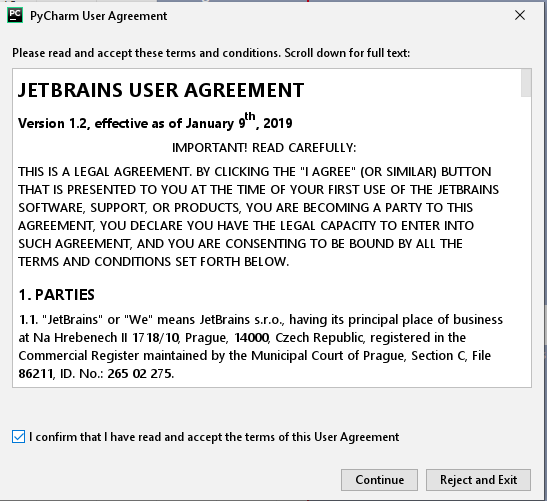
Click “Continue” which would open PyCharm.
 Learn Python